
Today I used the Windows Phone SDK v7.1 for the first time. This includes a fix for the FBX importer so that multiple animations can now be imported from one FBX file.
This is great but a friend of mine managed to find a bug with the process already! I have also carried out some tests.
Whatever the length of the first animation in the FBX file is the length of all animation imported from that FBX file. I only have access to FBX files exported myself from Blender.
To try to explain a bit better, if your first animation has 30 frames and your second take has 60 frames, the second animation in XNA will only play 30 frames instead of 60! It is also a problem the other way round. If the first animation is 240 frames and the you have an animation that should loop at 60 frames unfortunately it will pause after the 60th frame and not loop until it gets to 240 frames!
With that knowledge it is possible to create separate files with all the same length animations in each file, or just export one action per file as I already do.
As far as I can tell the Blender FBX file lists the correct number of frames and times for each action. I would like to know if this affects other exporters, such as 3DS. Unless I have a sample FBX file that does work with multiple takes in XNA with the first being a different length to the others then there is little chance of me being able to create a script that works round this peculiarity!
For myself I am already used to exporting individual animations so I will continue to do so.
== Follow up ==
I posted a question on the XNA forums to see if it is a problem for others:
http://xboxforums.create.msdn.com/forums/p/93794/561812.aspx
I had a very nice reply from one of the XNA developers who confirmed that they see the same problem and it will now be reported as a bug.
I have a project that may help some people. It includes methods for splitting FBX files and allows loading of one animation at a time for testing:
http://code.google.com/p/3d-model-prep/
I keep my animations separate from the model anyway so they can be shared but if you want to merge them all together the following article explains how:
http://blogs.msdn.com/b/shawnhar/archive/2010/06/18/merging-animation-files.aspx
Showing posts with label FBX. Show all posts
Showing posts with label FBX. Show all posts
Thursday, 20 October 2011

Saturday, 30 July 2011
Python Scripting Distraction
Early on this week I received an e-mail from one of the lead developers for Blender asking me to test the latest pre-release Official FBX exporter with XNA. He had done some work recently using bits of my XNA specific exporter and wanted to know if the official one was now compatible with XNA.
It was not compatible but I had always intended to merge the two in to one unified exporter so I spent the week doing that.
If you are interested all the source code and lots of notes are available by following these two links:
Its done now and the patch has been accepted. The next release of Blender (2.59) will only need one FBX exporter and XNA will be supported by that official Blender FBX exporter.
It is not quite as user friendly as my current scripts because there are several tick boxes to select to output in the correct format for XNA.

There is a convenient 'XNA Strict Options' tick box which forces the options to be compatible with XNA. It is not required but is handy.
If you select the options manually the following are required:
Further instructions are on the Blender Wiki:
http://wiki.blender.org/index.php/Extensions:2.5/Py/Scripts/Import-Export/Autodesk_FBX
I'm now going back to my .NET C# code. So after spending days working in Python and remembering not to end each line with a semi-colon, I now have to remember to put the semi-colon in!
I much prefer C# with the structured code, type explicit variables (I avoid 'var' in .NET) and most importantly Visual Studio's auto complete and syntax suggestions all built in. Happy coding.
- http://code.google.com/p/blender-to-xna/
- http://wiki.blender.org/index.php/Dev:2.5/Py/Scripts/Import-Export/UnifiedFBX
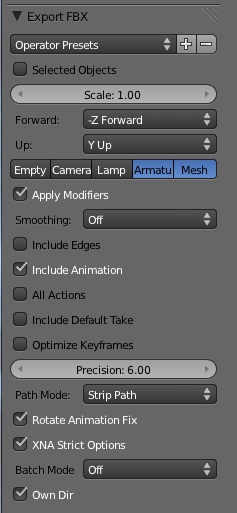
There is a convenient 'XNA Strict Options' tick box which forces the options to be compatible with XNA. It is not required but is handy.
- Set the scale to 1.0 (which is is by default.)
- Use the 'Rotate Animation Fix' (essential otherwise animations are a mess!)
- Turn off, Empty, Camera and Lamp (makes the file size smaller)
- Turn off smoothing (might not be necessary but I have not tested that yet.)
- Do not include edges (makes the file smaller and can avoid some import errors)
- Turn off optimized keyframes (not essential but might remove a duplicate keyframe that was added deliberately!)
- Do not include default take (can be tricky to merge animations if they are all named 'Default_Take'!)
- Select the 'Strip Path' mode so the uv textures use the same folder as the FBX file. (easier to manage the files.)
- Enable Armature included as bone. (This is the most important option to select.)
Further instructions are on the Blender Wiki:
http://wiki.blender.org/index.php/Extensions:2.5/Py/Scripts/Import-Export/Autodesk_FBX
Wednesday, 6 July 2011
Exporting Animated Models From Blender To XNA
If you want to develop a 3D game you will probably spend as much time creating the content as writing code. I am not an artist but I have found that Blender is a fully featured 3D editor that with a few weeks practice I was able to create models that I could use with XNA. The pipeline to get animated models from Blender to XNA needs to be followed closely but once understood is as easy as any other tool.
XNA and Blender are still being developed, improved and updated. Changes to both platforms have affected the methods required to have a successful pipeline. Follow the specific instructions for the XNA and Blender versions you are using.
Instructions for creating models that can be exported to XNA
Getting models to look right when they are imported in to XNA can cause a lot of confusion. Like many things it is not difficult when you know how.
There are several techniques that look fine from within Blender but which either have to be avoided or adhered to if you want to use that model in XNA.
This is a summary of the most common things that catch people out:
To explain in more detail:

 (Update Dec.2012 for Blender 2.6) The quick way to do this without changing the appearance of the model is to use the Apply menu in Object mode. Select the object (mesh) and use CTRL+A to bring up a small menu and then L to move the location of the origin to zero, R to fix the rotation to where it is and S to fix the scale.
As a rule of thumb, once you have set all the Blender objects properties to a location and rotation of zero and a scale of one all the modelling will be done in Blender's EDIT mode.

Blender is easiest to use if models are created with up in the Z direction. XNA's default is that models use Y as the up direction! From trial and error I have found it is easier to rotate the model when imported in to XNA rather than trying to work in Blender the wrong way up! Animations do not rotate very well in Blender, usually resulting in a mess! Using the rotation options in Blender's FBX exporter always results in a mess!

I have an XNA project with a content pipeline animation processor that includes a method for rotating 3D models while they are loaded including rotating their animations. Its only a few lines of code inserted at the correct point.
Use a rotation of X = 90, Y = 0, Z = 180 to rotate from Blender to XNA during the pipeline processing. Download that project source code using a Subversion client to see how its done: http://code.google.com/p/3d-model-prep/
You can download just the XNA Skinned Model Processor with corrected rotation from:
http://code.google.com/p/3d-model-prep/downloads/list
There is one last thing to watch out for. Poorly finished models with orphan vertices or edges are likely to cause errors or warnings during the import in to XNA. This is a common result of preparing a model to be game ready especially when reducing the numbers of faces a model uses to improve performance. I have a separate post on finding missing edges: http://blog.diabolicalgame.co.uk/2011/07/vertex-information-missing.html
This is not so important with the latest Blender FBX exporter because I have made that ignore lone vertices.
Setting up the animations
There are some prerequisites for creating animations and I have put those in another post:
http://blog.diabolicalgame.co.uk/2011/07/before-animating-with-blender.html
Exporting FBX Files
In versions of Blender prior to 2.59 the standard FBX export script that ships with Blender is NOT suitable for XNA. If you want to use XNA 4 please upgrade to at least 2.6x of Blender. There are some older instructions at the end if you are still using XNA 3.
From Blender 2.59 onwards the official FBX exporter supports XNA.
Blender 2.59 and 2.6+ to XNA 4.0
To work with XNA you must be using a version of Blender greater than 2.59. At the time of updating this page 2.60a is the latest stable version of Blender.
The official Autodesk FBX exporter included with that version supports XNA. The export script has general documentation on the Blender Wiki:

The above image shows the typical setting for use with XNA. It is necessary to change the default settings when working with animations. The default works for non-animated models but the rotation breaks animations. The default options also include more information in the file than XNA can use.
As a quick way to export XNA compatible files there is a tick box that sets all the required options:

It is mainly the 'XNA Rotate Animation Hack' and the Path mode: 'Strip Path' that are needed. This stops any rotation of the model and requires that all texture files are stored in the same folder as the FBX file.
The 'XNA Strict Options' is just a quick way to set the essential XNA options. One tick and all the settings work. You can still adjust some of the settings but it prevents you accidentally changing a necessary option.
The Autodesk FBX importer shipped with XNA 4.0 introduced the limitation that only one animation can be loaded from an FBX file. The updated version with the Windows Phone 7.1 SDK tried to fix this but included a bug so the number of frames in all animations was the same as the first take!
The Blender script not only has an option to output in a compatible format for XNA but also has an option to output 'All Actions' or if that is not selected, to output just the currently selected animation.

Just having one animation in each FBX file is the solution that works best with the current (November 2011) version of XNA.

In POSE mode use the 'Action Editor' to select the animation to export.

Then export and make sure the option for 'All Actions' is off.
Blender 2.49b to XNA 3.1 or older [Archive]
Essential script
This script is NOT shipped with Blender and must be downloaded and installed.
Download an XNA 3.1 compatible exporter from:
http://www.discoverthat.co.uk/games/blenderscripts/export_fbx_for_xna_v122a.py
or
http://www.triplebgames.com/export_fbx__for_xna.py
Copy the script in to the Blender script folder. In Windows Blender 2.49b scripts are stored in:
%USERPROFILE%\AppData\[Roaming]\Blender Foundation\Blender\.blender\scripts
Installation of Blender 2.4 Python scripts
XNA and Blender are still being developed, improved and updated. Changes to both platforms have affected the methods required to have a successful pipeline. Follow the specific instructions for the XNA and Blender versions you are using.
Instructions for creating models that can be exported to XNA
Getting models to look right when they are imported in to XNA can cause a lot of confusion. Like many things it is not difficult when you know how.
There are several techniques that look fine from within Blender but which either have to be avoided or adhered to if you want to use that model in XNA.
This is a summary of the most common things that catch people out:
- All the model objects (meshes) and the armature must be centred at the same location, ideally zero (X = 0.0, Y = 0.0, Z = 0.0 in the Object properties.) Set the locations to zero in Object mode and make all changes in EDIT mode.
- All the model objects must have a scale of 1.0 (one.) Set all the scales to 1.0 in Object mode then do all changes in EDIT mode.
- The model objects must not use rotation. Set all the rotations to 0.0 in Object mode then do all changes in EDIT mode.
- Every vertex must be weight painted or added manually to a bone vertex group. Any loan vertex will cause an error when importing in to XNA. To check you have bone weights for all vertices pull the model about in POSE mode. Any un-weighted points will be left behind when posing the armature.
- The XNA model class only supports UV wrapped textures. Blender's shading only work in Blender not in XNA.
- The FBX importer only support keyframe animations from Blender Actions and will not work with Blender's curves.
- In XNA set the 'Content Processor' for the FBX model to 'SkinnedModelProcessor' or whatever your processor name is - this is the most common oversight.
To explain in more detail:
As a rule of thumb, once you have set all the Blender objects properties to a location and rotation of zero and a scale of one all the modelling will be done in Blender's EDIT mode.

Blender is easiest to use if models are created with up in the Z direction. XNA's default is that models use Y as the up direction! From trial and error I have found it is easier to rotate the model when imported in to XNA rather than trying to work in Blender the wrong way up! Animations do not rotate very well in Blender, usually resulting in a mess! Using the rotation options in Blender's FBX exporter always results in a mess!
I have an XNA project with a content pipeline animation processor that includes a method for rotating 3D models while they are loaded including rotating their animations. Its only a few lines of code inserted at the correct point.
public static void RotateAll(NodeContent node,
                             float degX,
                             float degY,
                             float degZ)
{
  Matrix rotate = Matrix.Identity *
    Matrix.CreateRotationX(MathHelper.ToRadians(degX)) *
    Matrix.CreateRotationY(MathHelper.ToRadians(degY)) *
    Matrix.CreateRotationZ(MathHelper.ToRadians(degZ));
  MeshHelper.TransformScene(node, rotate);
}
Use a rotation of X = 90, Y = 0, Z = 180 to rotate from Blender to XNA during the pipeline processing. Download that project source code using a Subversion client to see how its done: http://code.google.com/p/3d-model-prep/
You can download just the XNA Skinned Model Processor with corrected rotation from:
http://code.google.com/p/3d-model-prep/downloads/list
There is one last thing to watch out for. Poorly finished models with orphan vertices or edges are likely to cause errors or warnings during the import in to XNA. This is a common result of preparing a model to be game ready especially when reducing the numbers of faces a model uses to improve performance. I have a separate post on finding missing edges: http://blog.diabolicalgame.co.uk/2011/07/vertex-information-missing.html
This is not so important with the latest Blender FBX exporter because I have made that ignore lone vertices.
Setting up the animations
There are some prerequisites for creating animations and I have put those in another post:
http://blog.diabolicalgame.co.uk/2011/07/before-animating-with-blender.html
Exporting FBX Files
In versions of Blender prior to 2.59 the standard FBX export script that ships with Blender is NOT suitable for XNA. If you want to use XNA 4 please upgrade to at least 2.6x of Blender. There are some older instructions at the end if you are still using XNA 3.
From Blender 2.59 onwards the official FBX exporter supports XNA.
Blender 2.59 and 2.6+ to XNA 4.0
To work with XNA you must be using a version of Blender greater than 2.59. At the time of updating this page 2.60a is the latest stable version of Blender.
The official Autodesk FBX exporter included with that version supports XNA. The export script has general documentation on the Blender Wiki:

The above image shows the typical setting for use with XNA. It is necessary to change the default settings when working with animations. The default works for non-animated models but the rotation breaks animations. The default options also include more information in the file than XNA can use.
As a quick way to export XNA compatible files there is a tick box that sets all the required options:
It is mainly the 'XNA Rotate Animation Hack' and the Path mode: 'Strip Path' that are needed. This stops any rotation of the model and requires that all texture files are stored in the same folder as the FBX file.
The 'XNA Strict Options' is just a quick way to set the essential XNA options. One tick and all the settings work. You can still adjust some of the settings but it prevents you accidentally changing a necessary option.
Individual Animations
The Blender script not only has an option to output in a compatible format for XNA but also has an option to output 'All Actions' or if that is not selected, to output just the currently selected animation.
Just having one animation in each FBX file is the solution that works best with the current (November 2011) version of XNA.

In POSE mode use the 'Action Editor' to select the animation to export.

Then export and make sure the option for 'All Actions' is off.
==
Blender 2.49b to XNA 3.1 or older [Archive]
At the time of writing the last version of the old series of Blender is 2.49b. In order to use older versions of XNA you will probably need to use the older series of Blender but make sure it is version 2.49b. Earlier versions have issues. Specifically 2.49a has a fault preventing scripts from running! (Nov.2010)
As mentioned above the standard FBX exporter will not work with XNA it is essential to use the following script or a variant of it:
http://wiki.blender.org/index.php/Extensions:2.4/Py/Scripts/Export/FBX-XNAThis script is NOT shipped with Blender and must be downloaded and installed.
Download an XNA 3.1 compatible exporter from:
http://www.discoverthat.co.uk/games/blenderscripts/export_fbx_for_xna_v122a.py
or
http://www.triplebgames.com/export_fbx__for_xna.py
Copy the script in to the Blender script folder. In Windows Blender 2.49b scripts are stored in:
%USERPROFILE%\AppData\[Roaming]\Blender Foundation\Blender\.blender\scripts
Installation of Blender 2.4 Python scripts
The scripting language used by Blender is Python. In the older versions of Blender up to and including 2.49b you'll need to download and install the full version of the Python scripting language 'Python' to use these scripts. You must install the matching version for the version of Blender you have. It tells you in the console Window when you start Blender. For example, Blender 2.48 required version 2.5 of Python (the sub version is not critical so version 2.5.2 and version 2.5.4 both work but version 2.6 would not.) Get from Python.org.
==
Blender 2.56 to 2.58 [Archive]
These early 2.5x versions shipped with a separate compatible exporter. I strongly recommend using the newer 2.59 version but the instructions for the older version are still on the Blender Wiki:
Blender 2.56 to 2.58 [Archive]
These early 2.5x versions shipped with a separate compatible exporter. I strongly recommend using the newer 2.59 version but the instructions for the older version are still on the Blender Wiki:
Saturday, 4 December 2010
Blender to XNA to be included in the next release of Blender
There is a good chance that the script I have just written to export from Blender to XNA will be included in the next release of Blender. Apparently it has to be tested and approved by some of the Blender administrators but it is already on their SVN server.
The instructions are now on a Blender Wiki page:
http://wiki.blender.org/index.php/Extensions:2.5/Py/Scripts/File_I-O/Blender-toXNA
The instructions are now on a Blender Wiki page:
http://wiki.blender.org/index.php/Extensions:2.5/Py/Scripts/File_I-O/Blender-toXNA
Tuesday, 30 November 2010
Blender 2.5 to XNA 4 animated FBX models
The following post is out of date because as from Blender 2.56 the scripts mentioned are all shipped with Blender. See the following post for more up to date information:
http://blog.diabolicalgame.co.uk/2011/07/exporting-animated-models-from-blender.html
==
Following on from my previous post on this subject I have managed to create an FBX exporter script for Blender 2.55 Beta that works with keyframe animations and imports in to XNA 4.0.
Due to the limitations with the Autodesk FBX importer that ships with XNA 4.0 the animations need to be loaded individually from separate FBX files but there are simple solutions available to work with that. Details and other links are in the Instructions with each of the following projects:
The package with several XNA FBX exporters for Blender 2.5 can be downloaded from:
http://code.google.com/p/blender-to-xna/
The most recent instructions are on the Blender Wiki:
http://wiki.blender.org/index.php/Extensions:2.5/Py/Scripts/File_I-O/Blender-toXNA
An XNA model viewer that has an option to load FBX files as separate animations:
https://code.google.com/p/take-extractor/
The XNA TakeExtractor project also demonstrates how to rotate models and their animations within the pipeline. That is useful for adjusting Blender models which face Z up to XNA's default which is Y up. Use a rotation while loading of X = 90, Y = 0, Z = 180. I think that ends up facing backwards because that is how my entire game appears to work and there is too much code for me to bother to change it!
http://blog.diabolicalgame.co.uk/2011/07/exporting-animated-models-from-blender.html
==
Following on from my previous post on this subject I have managed to create an FBX exporter script for Blender 2.55 Beta that works with keyframe animations and imports in to XNA 4.0.
Due to the limitations with the Autodesk FBX importer that ships with XNA 4.0 the animations need to be loaded individually from separate FBX files but there are simple solutions available to work with that. Details and other links are in the Instructions with each of the following projects:
The package with several XNA FBX exporters for Blender 2.5 can be downloaded from:
http://code.google.com/p/blender-to-xna/
The most recent instructions are on the Blender Wiki:
http://wiki.blender.org/index.php/Extensions:2.5/Py/Scripts/File_I-O/Blender-toXNA
An XNA model viewer that has an option to load FBX files as separate animations:
https://code.google.com/p/take-extractor/
The XNA TakeExtractor project also demonstrates how to rotate models and their animations within the pipeline. That is useful for adjusting Blender models which face Z up to XNA's default which is Y up. Use a rotation while loading of X = 90, Y = 0, Z = 180. I think that ends up facing backwards because that is how my entire game appears to work and there is too much code for me to bother to change it!
Friday, 26 November 2010
Blender 2.5 to XNA 4 animated model pipeline
See the future linked post for more up to date information:
http://blog.diabolicalgame.co.uk/2011/07/exporting-animated-models-from-blender.html
The following is a bit out of date. If you want to know how to get models from Blender to XNA read the above linked post not this one.
==
It's been a while since I posted because I have been struggling with a problem since I finished the conversion to XNA 4.
As mentioned in my previous post, animated models from Blender would no longer display properly in XNA. If I had imported the animation in XNA 3.1 they would still work in 4.0 but when I tried to save new animations from the models using XNA 4, the animations were distorted.
I tried fixing the FBX exporter from Blender but the FBX file format is not documented making it difficult. To cut a long story short I have ended up with a solution that uses separate files for the animations.
The model, bones and bind pose are loaded in to XNA using FBX. Each animation is exported from Blender as a list of bone transform matrices. Those can then be imported in to XNA and converted to the AnimationClip format used by the Microsoft Skinning Sample. Edit: I now have FBX working see my next post.
The process takes a few steps but works with the models I have been using. It needs more testing with other models.

The package with several exporters for Blender 2.5 can be downloaded from:
http://code.google.com/p/blender-to-xna/
The most recent instructions are on the Blender Wiki:
http://wiki.blender.org/index.php/Extensions:2.5/Py/Scripts/File_I-O/Blender-toXNA
The XNA sample and model viewer demonstrating how to import the animations can be downloaded from:
https://code.google.com/p/take-extractor/
Both are on Google Code, if the links do not initially work, wait an hour and try again. Google appear to have frequent outages but none so far have lasted longer than an hour.
There are still several limitations with the pipeline some are the same limitations as with earlier versions of XNA and Blender:
- All parts (Blender Objects) of a model must have the same centre (Origin, ideally at Zero)
- All parts of the model must have a scale of 1.0
- Every vertex must be weight painted or added to the bone vertex group for animation.
- The model has to be loaded in XNA before the animations can be converted to AnimationClip format.
At the moment the animations cannot be rotated in the content pipeline! [Fixed, see future posts] My next job is to work out the maths to rotate the animations as they are imported.
==
Please make sure you read my future posts. I have done a lot more work to get it all working properly.
http://blog.diabolicalgame.co.uk/2011/07/exporting-animated-models-from-blender.html
The following is a bit out of date. If you want to know how to get models from Blender to XNA read the above linked post not this one.
==
It's been a while since I posted because I have been struggling with a problem since I finished the conversion to XNA 4.
As mentioned in my previous post, animated models from Blender would no longer display properly in XNA. If I had imported the animation in XNA 3.1 they would still work in 4.0 but when I tried to save new animations from the models using XNA 4, the animations were distorted.
I tried fixing the FBX exporter from Blender but the FBX file format is not documented making it difficult. To cut a long story short I have ended up with a solution that uses separate files for the animations.
The model, bones and bind pose are loaded in to XNA using FBX. Each animation is exported from Blender as a list of bone transform matrices. Those can then be imported in to XNA and converted to the AnimationClip format used by the Microsoft Skinning Sample. Edit: I now have FBX working see my next post.
The process takes a few steps but works with the models I have been using. It needs more testing with other models.

The package with several exporters for Blender 2.5 can be downloaded from:
http://code.google.com/p/blender-to-xna/
The most recent instructions are on the Blender Wiki:
http://wiki.blender.org/index.php/Extensions:2.5/Py/Scripts/File_I-O/Blender-toXNA
The XNA sample and model viewer demonstrating how to import the animations can be downloaded from:
https://code.google.com/p/take-extractor/
Both are on Google Code, if the links do not initially work, wait an hour and try again. Google appear to have frequent outages but none so far have lasted longer than an hour.
There are still several limitations with the pipeline some are the same limitations as with earlier versions of XNA and Blender:
- All parts (Blender Objects) of a model must have the same centre (Origin, ideally at Zero)
- All parts of the model must have a scale of 1.0
- Every vertex must be weight painted or added to the bone vertex group for animation.
- The model has to be loaded in XNA before the animations can be converted to AnimationClip format.
At the moment the animations cannot be rotated in the content pipeline! [Fixed, see future posts] My next job is to work out the maths to rotate the animations as they are imported.
==
Please make sure you read my future posts. I have done a lot more work to get it all working properly.
Saturday, 30 October 2010
Finished converting to XNA 4.0
At last I have done the final bit so that I can say I have everything in XNA 4.0 that I had in XNA 3.1
This final part was not a code change to the game but is a way to get animations from my models created in Blender in to XNA. In XNA 3.1 the FBX importer could read multiple takes from one FBX file and I took advantage of that to import all the animations. That is no longer built in to the FBX importer.
I am rather pleased with my solution. It is much more elegant than before. I have created myself a WinForm based application that can read FBX files created from Blender. It can split them in to one file per take and export the animation key frames in to the format I need.
Compared to games it is not a very pretty presentation. Functional with a text status window.

I can create a config file per model so that the extraction, conversion and renaming of takes, to match my in game requirements, is reproducible. I should probably have done it this way in the first place.
If you are interested the source code can be downloaded from:
http://code.google.com/p/take-extractor/
I can now remove a lot of redundant code from my game editor.
Edit: I spoke too soon. The animations do not work properly from XNA 4.0 so I still need an XNA 3.1 utility just to get the animations right. The game will still be in XNA 4.0! I'm trying to find an alternate exporter for Blender or other method to be able to use only XNA 4.
This final part was not a code change to the game but is a way to get animations from my models created in Blender in to XNA. In XNA 3.1 the FBX importer could read multiple takes from one FBX file and I took advantage of that to import all the animations. That is no longer built in to the FBX importer.
I am rather pleased with my solution. It is much more elegant than before. I have created myself a WinForm based application that can read FBX files created from Blender. It can split them in to one file per take and export the animation key frames in to the format I need.
Compared to games it is not a very pretty presentation. Functional with a text status window.

I can create a config file per model so that the extraction, conversion and renaming of takes, to match my in game requirements, is reproducible. I should probably have done it this way in the first place.
If you are interested the source code can be downloaded from:
http://code.google.com/p/take-extractor/
I can now remove a lot of redundant code from my game editor.
Edit: I spoke too soon. The animations do not work properly from XNA 4.0 so I still need an XNA 3.1 utility just to get the animations right. The game will still be in XNA 4.0! I'm trying to find an alternate exporter for Blender or other method to be able to use only XNA 4.
Subscribe to:
Posts (Atom)





 Posts
Posts


